One of my clients who's using Office 365 had a requirement to execute a PowerShell script on a predefined schedule. This can be achieved in many different ways. You can even automate a script using Windows scheduler. But what I'm going to talk about is a, how to automate a script using Azure Automation. As a prerequisite You must have a Azure.
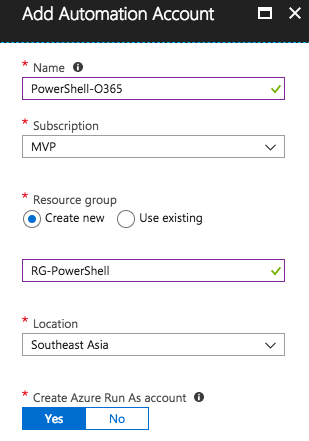
Log in to your Azure tenant and create a Azure Automation Account.

Create an account.

Next step is to select the necessary PowerShell Module. My PowerShell script was based on SharePointPnPPowerShellOnline. You can simply go to the Modules section, search for the relevant module.

and import.

As you are executing the script remotely, you have to store a users credentials. Hopefully not as plain text in the script. :) Select the Credentials and add the username and the password.

Next is to add your script by selecting Runbooks and adding one.

Place your script in the editor. Also make sure to add your stored credentials as shown in the below screen. You can create a variable from the credentials and pass it to your command.

Save & Publish. Next go to the Schedule and create a new schedule for your Runbook.
 Happy days!! :)
Log in to your Azure tenant and create a Azure Automation Account.

Create an account.
Next step is to select the necessary PowerShell Module. My PowerShell script was based on SharePointPnPPowerShellOnline. You can simply go to the Modules section, search for the relevant module.

and import.

As you are executing the script remotely, you have to store a users credentials. Hopefully not as plain text in the script. :) Select the Credentials and add the username and the password.

Next is to add your script by selecting Runbooks and adding one.

Place your script in the editor. Also make sure to add your stored credentials as shown in the below screen. You can create a variable from the credentials and pass it to your command.

$credentials = Get-AutomationPSCredential -Name 'Quicksilver'
Save & Publish. Next go to the Schedule and create a new schedule for your Runbook.


